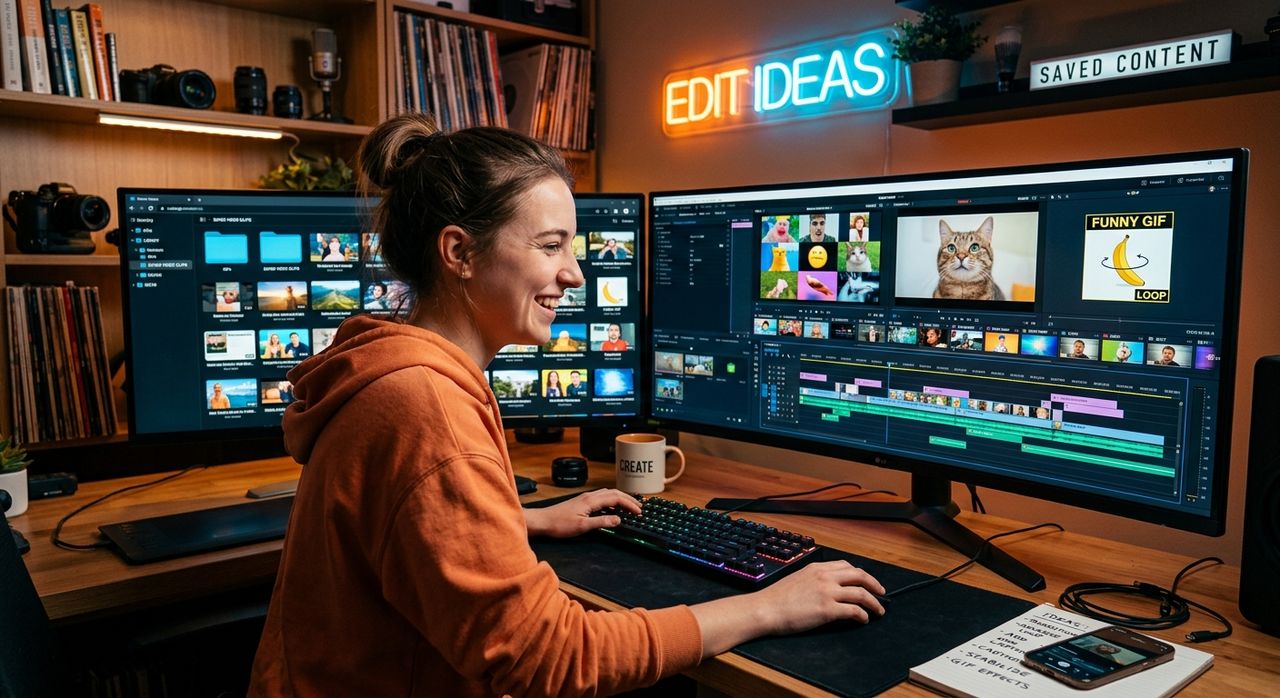
You've got a folder full of downloaded GIFs and video clips. Maybe it's a reaction GIF from Reddit, a meme loop from Tenor, or a three-second clip you grabbed from TikTok. Most people leave them there, buried in a downloads folder, never touched again. That's a waste. Those files are raw material, and with a little creativity, they become something personal, funny, and genuinely worth sharing.
Saved files are starting points, not finished products.
- A downloaded GIF can be cropped, sped up, or face-swapped to become a custom inside joke for your group chat.
- A video clip pulled from TikTok or Twitter can be trimmed, color-graded, and repurposed for a completely different context.
- The tools to do all of this are mostly free and browser-based, so you don't need editing software installed on your machine.
Why Downloaded Files Make Better Raw Material Than You Think
When you save a GIF or clip, you're capturing something that already works. The timing lands, the reaction is perfect, the loop is tight. That's the hard part. Your job as an editor isn't to rebuild from scratch. It's to take something that already resonates and make it yours.
Animated GIF files have been around since 1987, outlasting every format supposed to replace them because they do one thing perfectly: they loop. That looping quality is exactly what makes them so remixable. You can change the start and end point, alter the speed, or layer new content on top without breaking what made them work in the first place.
Video clips operate the same way. A short clip from a viral moment has context baked in. The audience already understands the mood. Your edits add a new layer of meaning on top of that shared understanding.
Start With Trimming and Cropping
Before anything else, get comfortable with two foundational edits.
Trimming removes the parts that don't serve you. A five-second clip might only need the middle two seconds. Cut the rest. Shorter is almost always better for shareable content.
Cropping changes the frame. Maybe the original GIF has a watermark in the corner. Maybe you want to isolate one face in a crowd. Cropping puts the focus exactly where you want it.
These two operations alone can transform a generic downloaded file into something that feels intentional and specific.
Changing Speed to Change the Feeling
Speed is one of the most underused editing tools. A saved GIF or video clip plays at whatever frame rate the original creator chose. You don't have to keep it that way.
Slowing a clip down adds weight and drama. A fast, chaotic loop becomes something more considered when you cut the speed in half. Speeding a clip up does the opposite, adding energy, absurdity, or urgency depending on the content.
Many browser-based editors let you adjust speed without re-encoding the entire file, which keeps quality high and saves processing time.
Adding Text Overlays That Actually Work
Text on a GIF or clip is the oldest trick in the meme format. But most people do it wrong. They put too much text, make the font too small, or pick a color that blends into the background.
Here are the rules that actually land:
- Keep the text to under eight words. If it takes longer than one glance to read, it's too long.
- Use a thick font with a contrasting outline. White text with a black stroke reads on almost any background.
- Place text at the top or bottom, never in the center where the action is happening.
- Match the timing of the text to the peak moment of the clip, not the very start.
These four rules apply whether you're captioning a reaction GIF or adding a punchline to a downloaded TikTok clip.
Injecting Yourself Into Classic Reaction GIFs
This is where things get personal and genuinely funny. Reaction GIFs work because they're universal. The "this is fine" dog, the awkward side-eye, the slow clap. Everyone recognizes them. But what if you replaced the face in one of those classics with your own, or a friend's?
That's exactly what a gif face swap lets you do. You upload the GIF you've saved, swap in a photo of someone you know, and the result is a reaction GIF that feels tailor-made for your group chat. It becomes an inside joke that lands harder precisely because it's specific. Your friend's face doing the slow clap is funnier than a stranger's. That's just the math.
The tool handles the frame-by-frame work automatically, tracking the face through the loop so the swap holds consistently across the whole animation. What you end up with isn't just a saved GIF anymore. It's a shared reference that lives in your group chat forever.
Color Grading for Mood and Visual Consistency
Color grading sounds technical, but at its most basic it's just adjusting the overall feel of a clip. Warmer tones feel cozy or nostalgic. Cooler tones feel tense or cinematic. Desaturating a clip slightly makes it feel more serious or moodier.
If you're building a series of clips, grading them consistently makes them feel like they belong together even when the original sources were completely different. This matters if you're putting together a compilation, a reel, or a set of posts that share a visual theme.
Most free browser tools offer basic color sliders. You don't need a full professional suite. A slight warmth boost or a contrast adjustment is often all it takes to unify the look.
Scaling the Same Idea to Full Video Clips
Everything described for GIFs scales up naturally to full video clips. The same concept that works on a two-second loop works just as well on a ten-second or thirty-second clip. Longer content simply gives the joke or concept more room to breathe.
If you've downloaded a short video from Twitter or TikTok, running a face swap video edit on it can turn a generic viral clip into something that feels genuinely personal. Swap in a friend's face during the dramatic reveal of a cooking video. Put your own expression onto a dancing clip. The absurdity of the mismatch becomes the point, and the longer runtime means the joke has more time to land.
Scholars who study video editing history note that the craft has always been about selection and juxtaposition, choosing the best raw material and placing it next to something that shifts its meaning. Downloaded clips are just the modern version of that raw material, and you're already sitting on a library of it.
Combining Multiple Clips Into Something New
One saved clip is a starting point. Multiple clips become a story.
Here are some ways to combine what you've already downloaded:
- Pair a setup clip with a punchline clip to build a two-part meme
- Cut between two reactions to create a "person 1 vs. person 2" format
- Stack clips of the same moment from different angles for a multi-cut effect
- Loop a single peak moment three times before cutting to a reaction for comedic timing
- Lay two clips side by side for a split-screen comparison that makes the contrast obvious
The combination format works because it creates structure. Viewers are wired to look for patterns and payoffs. Give them a clear setup and let the second clip deliver the resolution.
Exporting Without Losing Quality
All the editing in the world doesn't help if the export ruins the quality.
For GIFs, compression is aggressive by design. Keep the color palette reasonable and avoid extremely high resolutions. A GIF that's too large won't loop smoothly on slow connections and may not upload to some platforms at all.
For video clips, MP4 with H.264 encoding is still the most compatible format across platforms. Twitter, Reddit, and most messaging apps handle it without re-encoding on their end, which means your quality stays exactly where you left it.
If you're sharing in a group chat, file size matters more than maximum resolution. Most people are on mobile. A 15MB GIF will take too long to load and the joke dies in the wait. Keep it tight and the sharing actually happens.
Your Downloads Folder Is Already a Creative Stockpile
Stop thinking of saved GIFs and video clips as passive media. They're raw material with a second life waiting. The moment you treat them that way, your downloads folder stops being a graveyard of forgotten content and becomes a genuine creative resource you return to.
Trim, crop, grade, overlay, and swap. Each edit is a decision. Each decision shifts the meaning, the mood, or who the joke is for. That's what editing is, whether you're working in a professional suite or a browser tab on your lunch break. The files you've already saved are good enough to start with right now.