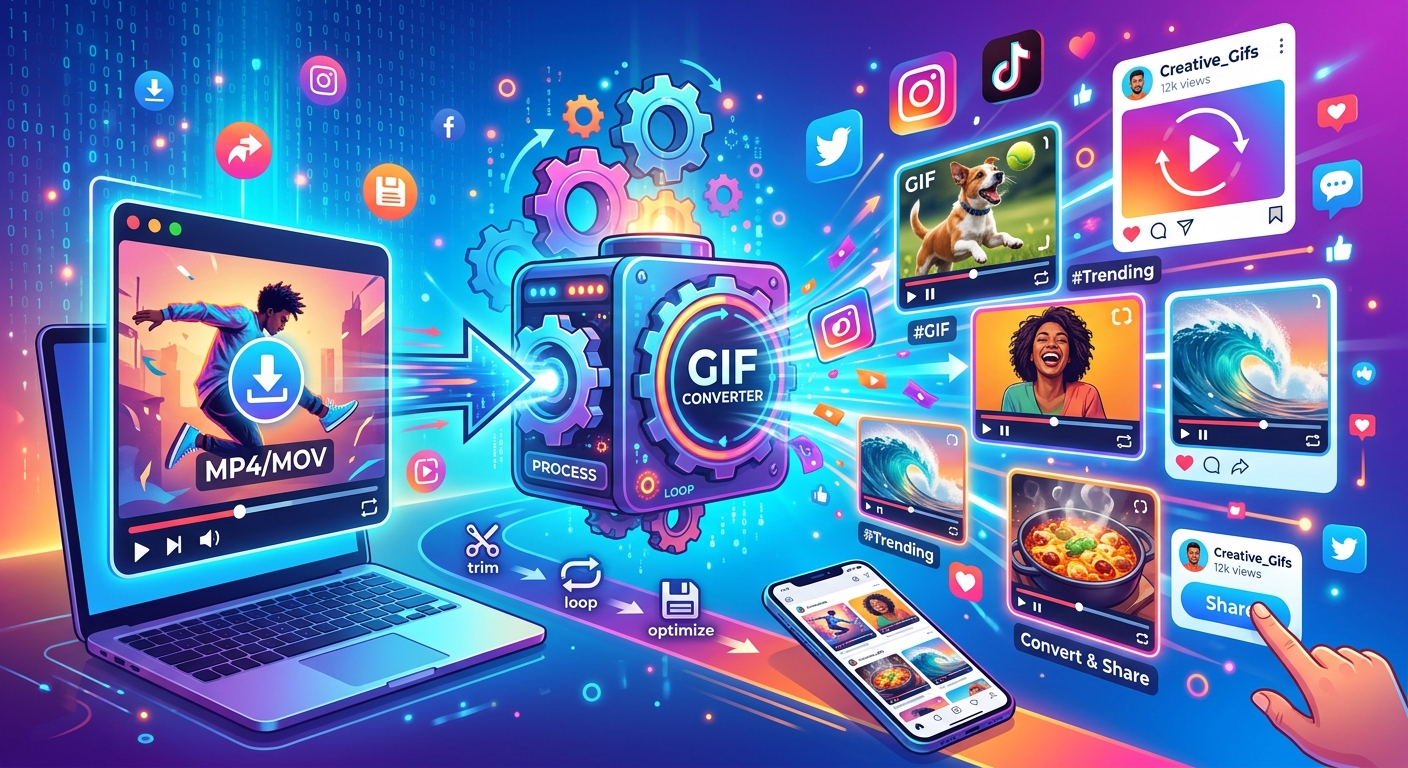
Scrolling through any social feed, you see GIFs everywhere. Reaction clips. Sports highlights. That one perfect movie moment. Most of them started as a video file someone grabbed from the internet, trimmed down, and converted into a looping animation. The process is simpler than it looks. You do not need editing software or a paid subscription. A browser-based video downloader and a free GIF converter are all it takes to go from clip to shareable content in a few minutes.
Your GIF Game Plan
- Download the clip using a browser-based tool that supports the platform you are pulling from.
- Convert the downloaded video into a GIF using a free online converter, keeping the clip under 15 seconds.
- Adjust frame rate and file size before uploading, since every platform has different limits and quality expectations.
Why a Short Clip Beats a Static Image
Static images are fine for announcements. But movement catches the eye. A looping GIF tells a mini-story without requiring sound. That matters on platforms like Twitter, Reddit, and Slack, where videos often need a tap to play but GIFs start automatically. A well-timed reaction GIF gets shared far more than a screenshot of the same moment.
GIFs also work well for demonstrating processes. If you are showing someone how to do something step by step, a looping GIF can replace a full paragraph of instructions. That is why they show up so often in tutorials, reply threads, and product demonstrations. The format is compact, instant, and requires zero effort from the viewer to engage with it.
Grabbing the Video Before You Convert It
Before you can convert anything, you need the clip saved locally. Streaming platforms do not give you a download button, which is where a browser-based downloader comes in. Paste the URL of the video into a tool like OrbitDownloader, choose the quality you want, and save the file to your device. The whole process takes under a minute for a short clip.
A few things to keep in mind at this stage. You want the shortest version of the clip possible. Long videos produce oversized GIFs. If the moment you want sits at the two-minute mark of a five-minute video, download the full video and trim it during the conversion step. Most GIF converters let you set start and end timestamps before generating the file, so you do not have to do any pre-editing in a separate app.
Format also matters at download time. MP4 is the most compatible choice. It processes cleanly in nearly every converter and does not cause the color-fringe issues that some WebM files produce during GIF conversion. If your downloader gives you a format option, pick MP4 and move on.
The Best Browser Tools for Converting Clips to GIF
You do not need to install anything. Several free browser-based converters handle the job reliably.
Ezgif is probably the most widely used free tool. You upload your video, set your start and end points, choose a frame rate, and click convert. A preview appears before you download, which is useful for catching problems early. GIPHY's online creator is another option if you want to post directly to GIPHY's library and embed the result elsewhere across the web.
CloudConvert supports GIF output from a wide range of input formats and handles batch jobs, which is helpful if you are converting several clips at once. All three tools run entirely in your browser, require no account for basic use, and process files fast enough that you can move from raw video to finished GIF in under five minutes.
What to Look for in a Good Converter
Not all converters handle color and motion the same way. A good tool lets you control frame rate manually rather than locking you into a preset. It should also let you resize the output, since file size is the main obstacle when uploading to social platforms. Look for a preview function so you can check the result before committing to a download. A converter that lets you set the number of loop iterations is also useful if you want the GIF to stop after playing a set number of times rather than looping indefinitely.
Frame Rate, File Size, and Why Both Matter
These two settings have the biggest impact on whether your GIF looks good and actually uploads without errors.
Frame rate is measured in frames per second (FPS). A higher frame rate means smoother motion but a larger file. Most video runs at 24 to 30 FPS. For GIFs, you rarely need to go above 15 FPS. At 10 FPS, motion looks slightly choppy but file size drops significantly. The sweet spot for most social GIFs is between 10 and 15 FPS. You get smooth enough motion without creating a file too large to share.
The GIF format carries a known limitation worth understanding. It supports a maximum of 256 colors per frame, a constraint baked into its image color encoding. That ceiling is fine for cartoons or illustrations, but real-world video footage often looks noticeably degraded. Footage with gradients or varied skin tones can look washed out after conversion. Choosing a converter that uses dithering helps mask this limitation and produces a more natural-looking result.
Here is a practical breakdown of file size targets by platform:
- Twitter / X: GIFs uploaded directly are converted to video internally. Aim for under 15MB and keep your clip under 30 seconds.
- Reddit: The inline GIF player handles files up to about 20MB well. Larger files sometimes fail to loop correctly.
- Slack: Keep GIFs under 2MB for inline preview. Larger files upload but do not auto-preview in the chat window.
- Discord: Standard accounts are capped at 8MB per upload. Nitro users get 50MB. Compress accordingly.
- Tenor and GIPHY embeds: These platforms host the file themselves and handle their own limits. But smaller files still load faster for your audience regardless.
Making Your GIF Work on Every Platform
Each platform handles GIFs differently behind the scenes. Twitter converts uploaded GIFs into MP4 files for playback, which actually improves visual quality because MP4 supports far more than 256 colors. Reddit plays GIFs inline as long as the file size stays manageable. Slack and Discord auto-preview small GIFs directly in the chat window but push larger ones behind a download link, which kills the immediacy.
Resolution is another factor. A GIF at 640 pixels wide looks sharp on most feeds. Going above 800 pixels rarely adds visible quality but always adds file size. For mobile-first platforms, 480 pixels wide is often enough. The goal is a file that loads fast and loops cleanly, not one that wins a pixel count contest.
Keeping clips short is the most effective strategy. Three to six seconds of well-chosen footage makes a stronger GIF than fifteen seconds of meandering action. Cut right before the moment you want to highlight. Let it loop, and the rhythm does the rest of the work for you.
Fun Ways to Customize a GIF Before You Share It
A raw conversion gets the job done, but a few creative touches make a GIF genuinely yours. Adding captions is the most common option. Most GIF tools let you overlay text directly on the image so the text loops with the animation. Pick a font that is readable at small sizes and place it at the bottom where it will not obscure the main action.
Cropping is underused. A tightly cropped GIF with one clear focal point reads better than a wide shot full of visual noise. If the original clip has a lot going on at the edges, crop it down to the core moment before converting. That one change alone can double the impact of an otherwise ordinary clip.
One of the more entertaining options gaining traction is face swapping within a GIF. If you have a reaction clip you want to personalize, a GIF face swap tool lets you drop your own face into the looping animation before you share it. It turns a generic clip into something personal and immediately funnier in group chats.
Adjusting playback speed is another trick worth trying. Slowing a GIF down by 50 percent adds a dramatic, cinematic effect. Speeding it up makes action clips feel more intense. Many converters offer this as a post-conversion option, or you can adjust the source video speed before feeding it into the converter at all.
Turning a Downloaded Clip Into Content That Actually Gets Shared
The difference between a GIF nobody saves and one that gets forwarded across six different chats comes down to a few decisions made early in the process. Pick the right moment. Keep the loop tight. Match the file size to the platform. Add something personal when it fits the context.
The download step is where it all starts. A browser-based downloader pulls the clip from whatever platform is hosting it. A free converter shapes it into a GIF. The settings you choose in between, frame rate, resolution, and file size, determine whether the final file looks polished or pixelated. Once you have run through the process once, the whole workflow takes maybe five minutes from a URL to a finished, upload-ready GIF.
That is a fast turnaround for content that can land in someone's group chat or gain traction in a thread. The clips are already out there. All you are doing is reshaping them into a format that works harder on every feed they appear in.