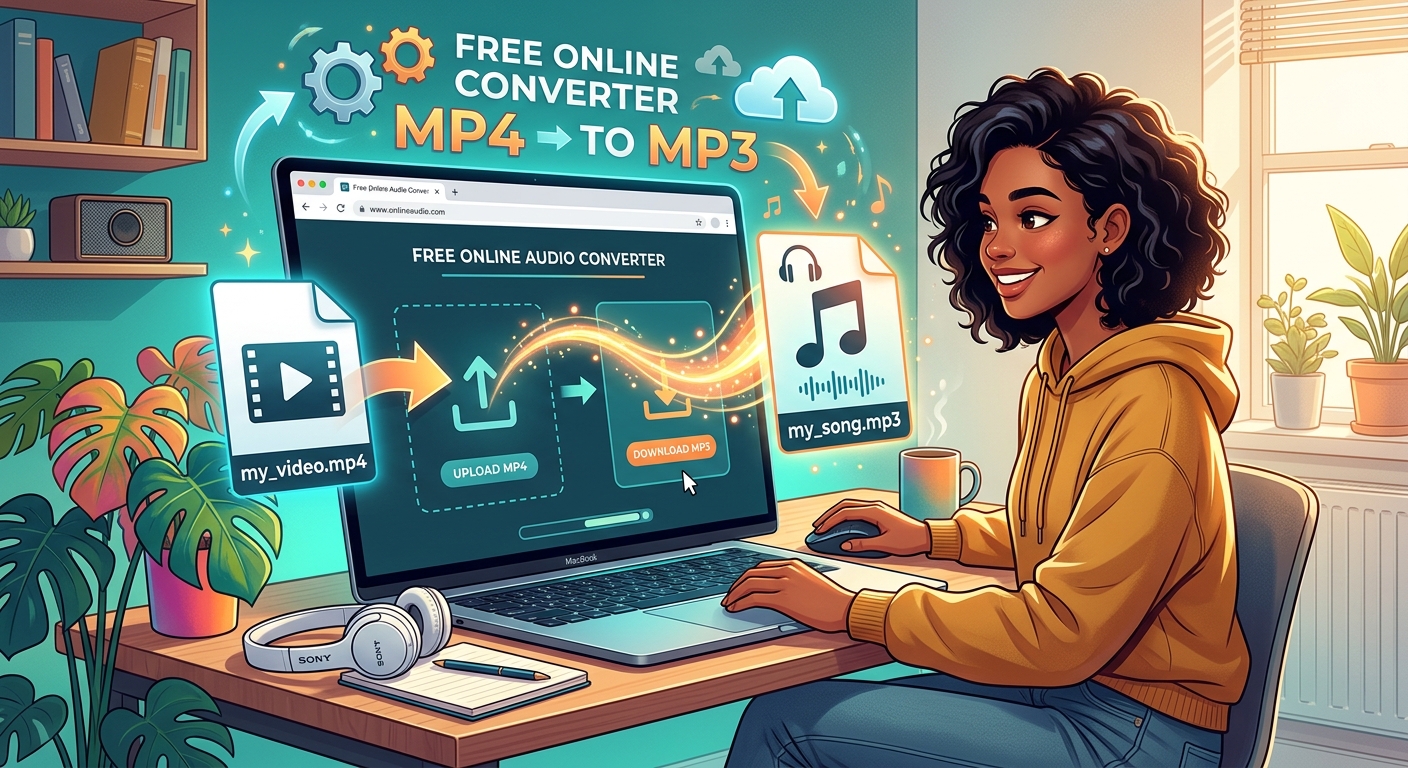
You downloaded a lecture you wanted to revisit later. Maybe it was a live music performance uploaded as a video, or a podcast that somehow landed in your downloads folder as a full MP4. Now the file is sitting there, consuming gigabytes of space, and you have no use for the video portion at all. You just need the audio. The process of pulling that audio out is faster than you might expect, and you can do it entirely from a browser tab.
What You Need to Know
- An MP4 file bundles video and audio together in one container, and the video track is responsible for most of the file size.
- Converting to MP3 discards the video entirely and outputs only the audio, typically reducing file size by 90 percent or more.
- Browser-based converters handle this process without any software installation, app download, or account creation.
Why an MP4 Carries Far More Data Than You Actually Need
MP4 is not a single stream of media. It is a container, a format that packages multiple tracks into one file. Inside a typical MP4, you will find a video stream, an audio stream, and a layer of metadata that ties the two together and controls playback timing.
The video stream is where the bulk of the data lives. A single hour of 1080p video can consume anywhere from 1 GB to 4 GB depending on the compression settings used when the file was made. The audio in that same file might account for only 50 to 100 MB of that total. When you have no interest in the video itself, the rest of the file is dead weight.
This is especially relevant for lectures recorded in large rooms, concert footage where you care about the music but not the crowd shots, and interviews or panel discussions where the visual content adds nothing to your experience. Storing a multi-gigabyte MP4 file for the sake of audio you could carry in a fraction of the space is a trade-off that rarely makes sense.
The MPEG-4 container standard was designed to hold many different data types at once, which is powerful for video production and streaming but entirely unnecessary when your only goal is audio playback.
What MP3 Does Differently and Why It Fits This Job
MP3 is a format built exclusively for audio. It uses perceptual audio coding, a compression method that identifies sounds the human ear is unlikely to notice and removes them to shrink the file. The result is a file that plays cleanly on virtually every device, app, and platform in existence.
For content types like spoken-word recordings, educational lectures, or even most music, a 128 to 192 kbps MP3 delivers audio that is indistinguishable from the original for the average listener. The file size is a fraction of the MP4 it came from, and it is easy to organize, share, and move between devices.
There is no video track in an MP3. There is no metadata padding for frame rates or resolution. There is nothing in the file except the audio data itself. That simplicity is exactly what you want when the video was never the point.
Comparing File Sizes Across Common Content Types
The numbers below show what kind of size reduction to expect when converting different types of recorded video to audio-only MP3 format at 128 kbps. These are estimates based on typical encoding settings, but real results will be close to these ranges.
Typical File Size Reduction by Content Type
| Content Type | Duration | MP4 File Size (approx.) | MP3 File Size (approx.) |
|---|---|---|---|
| University lecture | 60 min | 1.1 GB | 58 MB |
| Live music performance | 90 min | 3.2 GB | 86 MB |
| Interview or panel video | 45 min | 700 MB | 43 MB |
| Podcast uploaded as video | 30 min | 400 MB | 29 MB |
The savings are significant across the board. For someone maintaining a library of downloaded talks or recordings, those numbers add up to multiple gigabytes recovered from a single folder.
How to Run the Conversion Without Touching a Single Installer
Browser-based converters exist precisely for this scenario. You visit the page, upload your file, and download the result. Nothing gets installed on your machine. Nothing persists after you close the tab. The conversion happens on remote servers and the finished file is handed back to you as a standard download.
Running mp4 to mp3 directly in your browser is the most direct way to handle this. The steps are straightforward:
- Open the converter in your browser. No sign-up page required, no paywall to get through before you can do anything useful.
- Select or drag in your MP4 file. Most converters accept files up to a few hundred MB without issue. Larger files may take longer to upload depending on your connection speed.
- Wait for processing. The server receives the file, extracts the audio track, and re-encodes it as MP3. For most recordings, this takes anywhere from a few seconds to about a minute.
- Download the finished MP3. A download button appears when the file is ready. Click it and save to wherever you keep your audio files.
- Verify playback. Open the MP3 in any media player to confirm the audio is clean and the full recording is present from start to finish.
That is the entire process. There are no steps hidden behind a settings menu. There is no configuration required before you can begin. If you can upload a file and click a button, this works for you.
Content Types Where This Approach Pays Off Most
Not every MP4-to-MP3 conversion is equally worthwhile, but for the following types of content, the case for extracting audio is clear:
- Conference talks and keynote presentations you want to revisit during a commute or workout
- Language learning videos where listening practice matters more than watching the screen
- Live acoustic or stripped-down music performances recorded on video
- Documentary-style content where narration carries the message without needing visuals
- Meditation or relaxation sessions uploaded as videos to streaming platforms
- Interview recordings you want stored as audio-only archives rather than full video files
All of these share the same underlying pattern. The video component exists because that is how the content was recorded or distributed, not because it adds anything to the actual experience of consuming it. You are not losing anything meaningful by stripping it out.
What to Expect from Audio Quality After the Conversion
The audio inside most MP4 files is encoded as AAC (Advanced Audio Coding), which is itself already a compressed, lossy format. Converting that AAC audio to MP3 means re-encoding from one lossy format into another. A small quality cost occurs each time audio is re-encoded.
For spoken content, this is essentially a non-issue. Dialogue, narration, and interview audio survive re-encoding with no audible degradation at standard bitrates. For music recordings, you may notice a slight softening at the high end if you listen through good headphones at high volume. The difference is subtle for most listeners and negligible for casual playback.
If quality matters to you, look for a converter that lets you select the output bitrate before downloading. Choosing 192 or 320 kbps gives the MP3 encoder more room to work with and reduces the perceptible difference between the source audio and the final output. For podcasts and lectures, 128 kbps is more than sufficient.
Cleaning Up Your Drive After the Conversion Is Done
Once you have the MP3 and confirmed it plays back correctly from start to finish, you can delete the original MP4 with confidence. There is no reason to keep both files unless you think you might need the video again later.
If you have a folder of MP4 recordings that you downloaded for audio purposes, running each one through a browser converter and replacing it with an MP3 can recover substantial space in a short session. Ten lectures at 1.1 GB each takes up 11 GB. The MP3 versions of those same lectures might total under 600 MB combined. That is nearly 10.5 GB freed without losing anything you actually care about.
The converted MP3 files are also easier to manage day-to-day. They load faster in media players, transfer more quickly to phones and tablets, and sync without hitting storage limits on portable devices. A well-organized folder of MP3 files is simply easier to live with than an equivalent collection of video files you never watch.
Your Audio, Free from the Video That Was Weighing It Down
The case for keeping a full MP4 when you only want audio is genuinely hard to make. The format was built for a different purpose. It carries data you will never use, and it occupies far more space than the audio content inside it warrants.
Pulling the audio out in a browser takes less time than it would take to move the original file to a different folder. The result is a smaller, faster, more portable file that plays on every device and platform you already own. No installation, no account, no extra steps hidden in a settings menu.
If you have MP4 files sitting on your drive right now purely for their audio, the conversion process is waiting for you the next time you open a browser tab.